


Using the KKP Better App
Your complete guide to a Better experience
How can we help you?
Other services
Other services
How to Fix Device Security Standard Issues on Android
- The device's operating system has been modified (Root/Jailbreak) on your smartphone or tablet to allow system modifications or installation of certain programs that normally can't be installed. This allows all applications to access data and files on your device.
- Custom ROM has been installed on the device.
- The app was installed through sideloading or downloaded from sources other than the Google Play Store, such as through Gbox, Gspace, etc.
- The smartphone or tablet was manufactured by an uncertified manufacturer, or is a model/version that hasn't been certified.
-
The device or operating system doesn't meet Google's standards.
If you open the KKP Better app and see this screen:
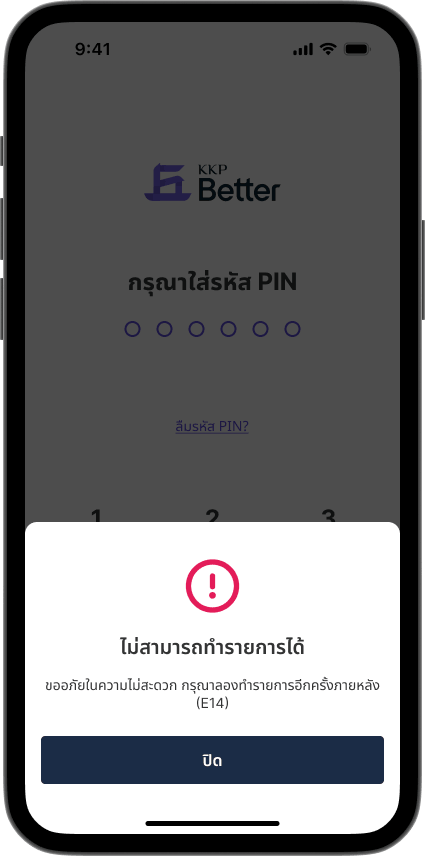
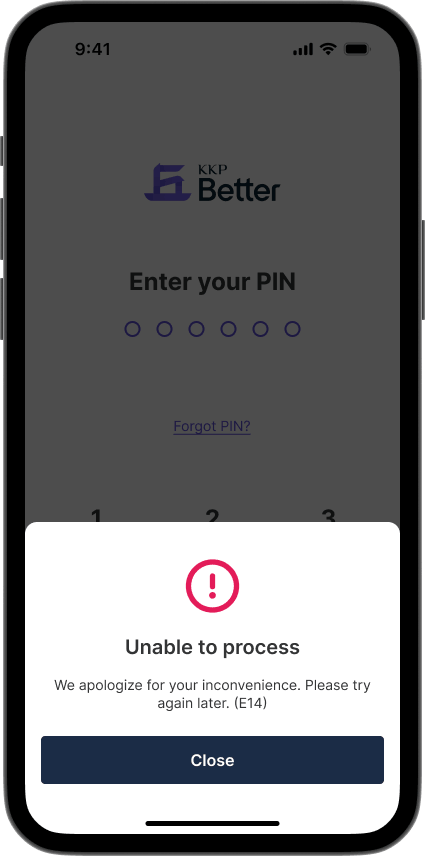
Solution 1: Fix your current device to access the KKP Better app
1. Update Play Store
.png)
.png)
.png)
2. Clear Play Store cache and data
.png)
.png)
.png)
.png)
3. Update Play Services
.png)
.png)
.png)
.png)
4. Enable Play Protect
.png)
.png)
.png)
5. For Samsung devices: Prevent Google Play Store from sleeping
.png)
.png)
.png)
.png)
.png)
6. Restart your phone
Solution 2: Switch to another device
If you've followed the steps above and still can't access the KKP Better app, please switch to another device for secure use of the KKP Better app.