Using the

Using the KKP Better App

Your complete guide to a Better experience

How can we help you?

Getting Started

Getting Started

How to Access KKP Better App After Changing Your Mobile Phone

Secure and smooth access, even on your new device.
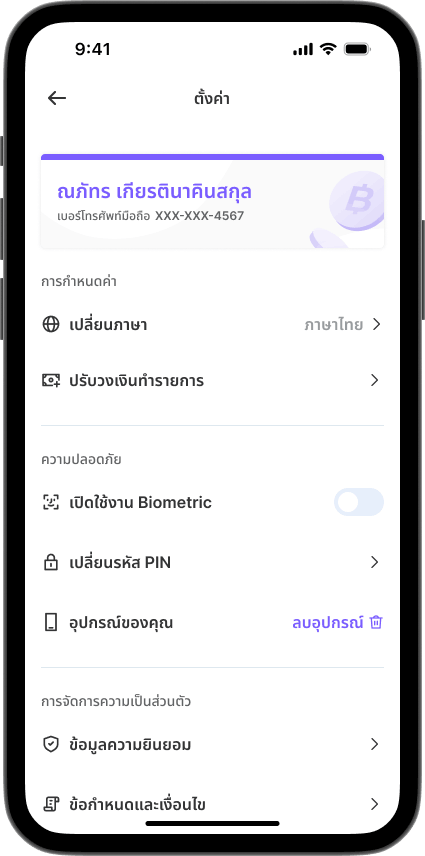
Step 1

Step 1

If you are switching to a new Android device, please remove your registered device from the KKP Better on your old device first.
Go to "Settings" > "Your Device" > "Remove".
Step 2

Step 2

Tap “Get started” to begin using the KKP Better app on your new device.
Step 3

Step 3

Fill in your National ID number and date of birth, then tap "Next".
Step 4

Step 4

Enter your PIN to access the KKP Better app.
Step 5

Step 5

Confirm your mobile phone number and email for KKP Better app access.
Step 6

Step 6

Enter the OTP code to verify the information.
Step 7

Step 7

Perform facial scan for identity verification.
Step 8

Step 8

Successfully logged into KKP Better app.